
Difference Between LM Studio and Ollama: Which Local AI Tool Is Better?

Running AI models on your own computer has become much easier than it used to be. Two of the most popular tools for doing this are LM Studio and Ollama.
But what is the difference between LM Studio and Ollama?
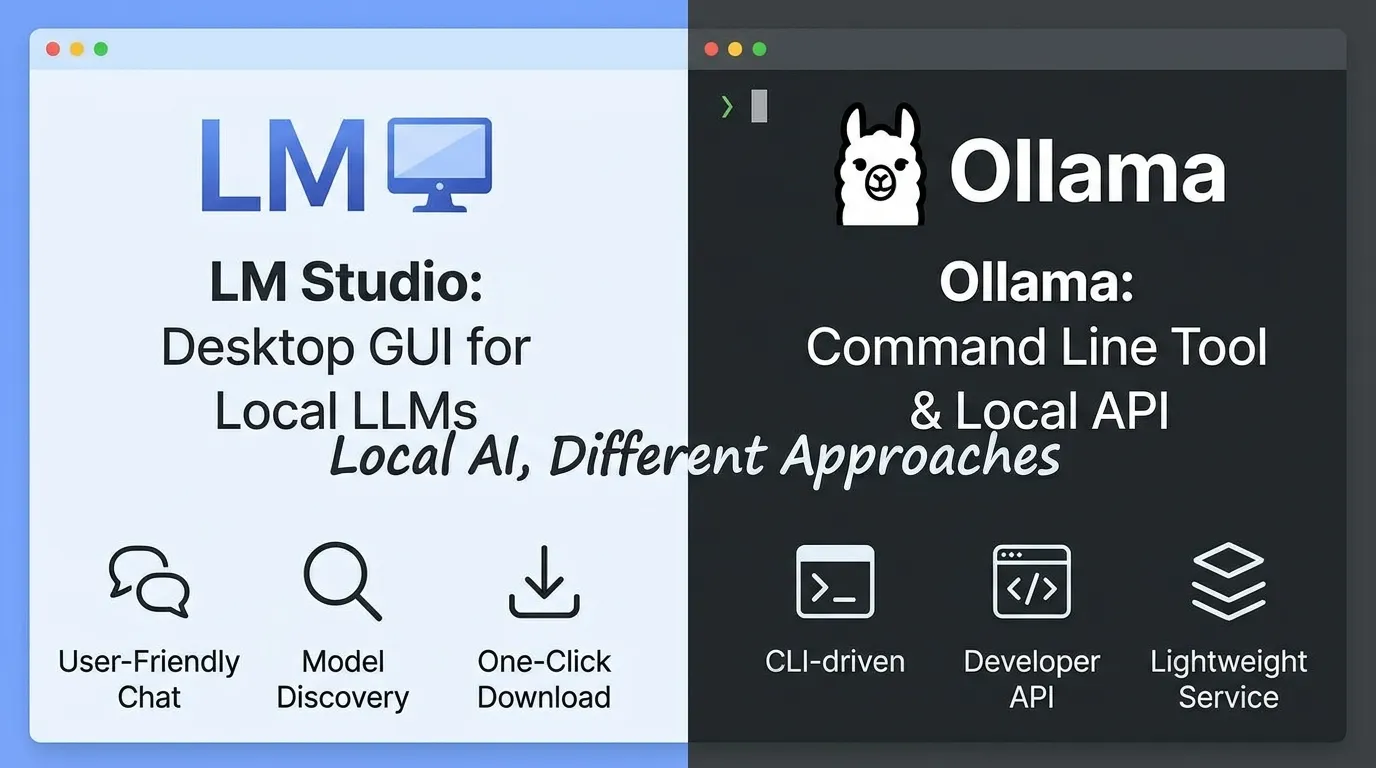
The biggest difference is how they are designed. LM Studio focuses on giving you a friendly desktop app for downloading, managing, and chatting with local AI models, while Ollama focuses more heavily on a simple command-line workflow and local model serving. Both can run models on your own computer and provide APIs for connecting local AI to other applications.
LM Studio currently supports macOS, Windows, and Linux and provides a graphical chat interface, model discovery, local servers, APIs, and developer tools. Ollama also provides a local model runtime and API, with models available through its model library and commands such as ollama run.
So which one should you choose?
This guide compares LM Studio vs Ollama across setup, user interface, model management, performance, APIs, developer features, hardware, privacy, and ease of use.
LM Studio vs Ollama: Quick Comparison
| Feature | LM Studio | Ollama |
|---|---|---|
| Main focus | Desktop local AI experience | Local AI runtime and developer workflow |
| GUI | Yes | More terminal-focused |
| Command line | Yes | Yes |
| Local models | Yes | Yes |
| Model discovery | Built into app | Ollama model library |
| Local API | Yes | Yes |
| OpenAI-compatible API | Yes | Yes, commonly used through local integrations |
| Model management | GUI + CLI | CLI + application tools |
| Beginner friendly | Excellent | Good |
| Developer friendly | Excellent | Excellent |
| Offline use | Yes | Yes |
| macOS | Yes | Yes |
| Windows | Yes | Yes |
| Linux | Yes | Yes |
| MCP support | Yes | Depends on the application and setup |
| Best for | Beginners and developers | Developers and terminal users |
LM Studio’s current documentation describes a desktop application with model downloading, chat, local serving, model management, and developer APIs.
What Is LM Studio?
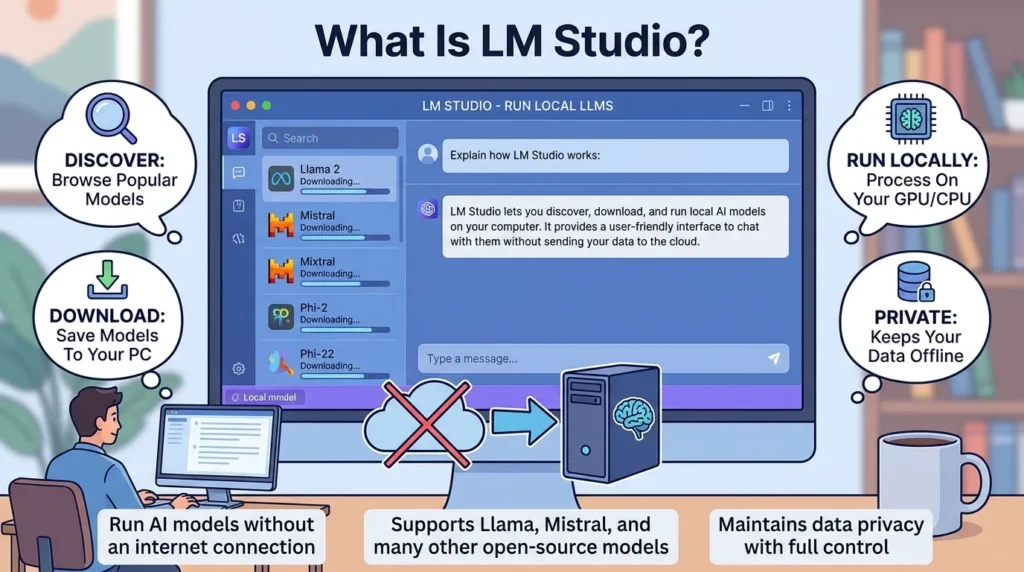
LM Studio is a desktop application that lets you run large language models locally on your computer.
Instead of sending your prompts to a remote AI service, you can download supported model files and run them on your own hardware.
The application gives you a graphical interface, so you don’t need to work entirely from a terminal.
You can:
- Search for models
- Download models
- Load models
- Chat with models
- Adjust model settings
- Run a local API server
- Connect applications to your local models
- Work with documents
- Use developer tools
LM Studio supports models such as Llama, Qwen, DeepSeek, Phi, and other local LLMs. It supports macOS, Windows, and Linux.
For many beginners, this graphical approach makes LM Studio one of the easiest ways to start experimenting with local AI.
What Is Ollama?
Ollama is a tool designed to make running local AI models simple, particularly from the command line.
For example, a basic Ollama workflow can look like this:
ollama run llama3
Ollama’s model library provides downloadable models, and its official model pages show commands for running models locally.
Ollama also provides a local API.
For example, its Llama 3 model page demonstrates requests to a local endpoint at:
http://localhost:11434/api/generate
This allows developers to connect local models with scripts, applications, and other software.
The result is a tool that feels particularly natural for developers who prefer terminals, scripts, and application integrations.
The Main Difference Between LM Studio and Ollama
The simplest way to understand the difference is this:
LM Studio is more application-focused, while Ollama is more runtime- and developer-focused.
Imagine you want to install a local AI model and start chatting with it.
With LM Studio, you can open the application, search for a model, download it, load it, and start chatting through the graphical interface.
With Ollama, you can open a terminal and run a command such as:
ollama run llama3
That doesn’t mean Ollama cannot work with graphical applications. It can serve models through a local API, and many third-party applications can connect to it.
Likewise, LM Studio isn’t limited to chatting. Its current developer tools include REST APIs, OpenAI-compatible endpoints, an SDK, a CLI, and server functionality.
The difference is mainly about how you prefer to interact with your local AI environment.
LM Studio vs Ollama: User Interface
This is one of the clearest differences.
LM Studio
LM Studio has a full graphical interface.
You can browse models, manage downloads, load models, chat, and configure local servers without spending much time in a terminal.
This makes it a strong choice for beginners.
If you’ve never used local AI before, seeing your models and settings inside an application can make the learning process much easier.
Ollama
Ollama has traditionally centered around command-line commands and local services.
A typical workflow might involve commands such as:
ollama run llama3
The advantage is simplicity.
Once you’re comfortable with the terminal, starting models can be very fast.
Ollama also works well when you want your application or script to communicate with a local model instead of manually opening a chat window.
Winner for interface: LM Studio
If you want a visual application, LM Studio is the easier choice.
If you prefer the terminal, Ollama may feel more natural.
LM Studio vs Ollama: Model Selection
Both tools give you access to many local models.
Choosing the right model architecture balances speed and capability; if you also use cloud-hosted alternatives, compare tier performance in our guide on Claude Haiku vs Sonnet vs Opus
LM Studio has an integrated model discovery and download experience. Its documentation specifically describes downloading models through the application and using models such as Llama, Qwen, DeepSeek, Phi, and others.
Ollama has its own model library with models that can be downloaded and run using Ollama commands. Its current library includes categories such as vision, tools, thinking, embeddings, and cloud models.
The exact model selection available through either platform changes over time.
For a practical comparison of model management, local deployment, APIs, and developer workflows, see this LM Studio vs Ollama deployment comparison.
This is important because the model itself usually has a much bigger effect on answer quality than whether you launch it through LM Studio or Ollama.
Winner: Tie
Both are strong choices for accessing local models.
LM Studio vs Ollama: Ease of Installation
For beginners, LM Studio has an obvious advantage because the process feels similar to installing a normal desktop application.
You download the application, install it, choose a model, and start chatting.
LM Studio officially supports Apple Silicon Macs, x64 and ARM64 Windows systems, and x64 Linux systems.
Ollama is also designed for straightforward installation and model execution.
Once installed, commands such as:
ollama run llama3
can get you started quickly.
Winner: LM Studio for beginners
Winner: Ollama for terminal users
LM Studio vs Ollama: Performance
This is where comparisons can become misleading.
There isn’t one universal answer to the question:
“Is LM Studio faster than Ollama?”
The speed you experience depends on several factors:
- Model architecture
- Model size
- Quantization
- CPU
- GPU
- RAM
- VRAM
- Context length
- Operating system
- Runtime configuration
- Number of tokens processed
For example, running a small 7B or 8B model is very different from running a much larger model.
The same computer may also behave differently depending on the model format and runtime being used.
For an additional real-world perspective on local-model performance, Apple Silicon workflows, GPU offloading, and the practical differences between the two tools, read this LM Studio vs Ollama local AI comparison
LM Studio currently supports llama.cpp, and on Apple Silicon it also supports Apple’s MLX runtime.
Therefore, instead of asking which application is always faster, it is better to ask:
Which runtime and configuration work best for your specific hardware and model?
Winner: No universal winner
For serious testing, run the same model with similar settings on the same computer.
LM Studio vs Ollama: Hardware Requirements
Neither tool magically removes the hardware requirements of local AI.
The larger the model, the more memory you generally need.
For example, a small quantized model may run comfortably on a modern laptop, while a very large model may require a desktop with substantial RAM or VRAM.
Your hardware matters more than the application name.
Pay attention to:
- System RAM
- GPU VRAM
- CPU performance
- GPU support
- Model size
- Quantization
- Context length
LM Studio provides resource estimation tools through its CLI, including estimates for GPU and total memory requirements.
LM Studio vs Ollama: API Support
Developers will probably care about this more than casual users.
Both tools can serve local models through APIs.
LM Studio API
LM Studio currently offers a native REST API and OpenAI-compatible endpoints.
Its OpenAI-compatible API includes endpoints such as:
/v1/models/v1/responses/v1/chat/completions/v1/embeddings/v1/completions
This means applications that already work with OpenAI-style APIs can often be pointed toward LM Studio by changing the base URL.
LM Studio’s current API also supports stateful chats, model management, MCP features, and other developer functions.
Ollama API
Ollama also provides a local HTTP API.
For example, the official Llama 3 page shows requests being sent to:
http://localhost:11434/api/generate
Developers can use this approach to send prompts to local models from applications and scripts.
Winner: Tie
Both are useful for local application development.
LM Studio may appeal more to developers who want OpenAI-compatible endpoints and a graphical environment.
Ollama is especially attractive when you want a simple local model service that can be controlled through commands and API calls.
LM Studio vs Ollama for Developers
If you’re building software around local AI, both options are worth considering.
Choose LM Studio if you want:
- A graphical interface
- OpenAI-compatible endpoints
- REST APIs
- Python and TypeScript SDKs
- Model management through an application
- MCP support
- Easy model testing
LM Studio’s developer documentation currently lists TypeScript and Python SDKs, REST APIs, OpenAI-compatible APIs, Anthropic-compatible APIs, and CLI tools.
Choose Ollama if you want:
- Terminal-based workflows
- Simple model commands
- Local API access
- Easy scripting
- A lightweight local model service
- Developer-focused automation
Ollama’s simple command structure is one of its biggest strengths.
Winner: Depends on your workflow
For a developer who wants a visible application and lots of configuration options, LM Studio can be more comfortable.
For someone who wants to type a command, start a model, and connect it to software, Ollama can be a great fit.
LM Studio vs Ollama for Beginners
If you’re completely new to local AI, I would start with LM Studio.
Why?
Because the graphical interface lets you see what’s happening.
You can browse models and manage them without learning several terminal commands first.
A typical beginner experience looks like:
- Install LM Studio.
- Open the application.
- Search for a model.
- Download it.
- Load the model.
- Start chatting.
LM Studio’s documentation specifically describes its simple chat interface and built-in model download experience.
Ollama can also be easy, but it assumes you’re comfortable typing commands.
For example:
ollama run llama3
is extremely simple once you understand the workflow.
Winner: LM Studio
LM Studio vs Ollama for Coding
Both can be useful for coding.
You can run coding-focused models locally and connect them to development environments through local APIs, integrating your endpoints directly into AI-assisted coding setups like Cursor vs Windsurf vs GitHub Copilot.
The better choice depends on how you work.
If you want to experiment with different models, compare responses, and change settings through a graphical interface, LM Studio is appealing.
If you want to integrate a local model into scripts, development tools, or automated workflows, Ollama’s command-line approach can be very convenient.
The important point is that the coding model you select matters greatly.
A strong coding model running through Ollama may give better results than a weaker model running through LM Studio, and the reverse can also happen.
LM Studio vs Ollama for Privacy
Both can be used for local AI workloads.
The basic advantage of running a model locally is that your prompts can be processed on your own computer rather than automatically being sent to a remote AI service.
LM Studio explicitly states that it can operate entirely offline once you have the required model files.
With local AI, however, you should still understand how any additional integrations work.
If you connect a local model to an external service, website, MCP server, or cloud feature, information may leave your computer depending on the setup.
So “local AI” doesn’t automatically mean that every part of your workflow is offline.
Winner: Tie
Both can support local workflows.
LM Studio vs Ollama: MCP Support
MCP allows AI applications to connect models with external tools, a workflow increasingly leveraged by autonomous development tools like Cline vs Cursor when executing multi-step tasks.
LM Studio currently documents MCP support in both its application and API stack. Its current REST API includes MCP support, and the documentation explains how models can interact with MCP servers.
This can be useful if you’re building local AI agents or want a model to interact with external tools.
Ollama can also be used as part of applications and agent workflows, but the exact MCP experience depends heavily on the application or framework you’re connecting to Ollama.
Winner: LM Studio for built-in MCP tooling
LM Studio vs Ollama: Command Line
Ollama’s terminal-first approach remains one of its biggest attractions, especially when paired with a high-performance GPU terminal setup like iTerm2 vs Ghostty to monitor rapid local stream outputs.
This is one category where Ollama has a very strong identity.
The basic workflow is easy to remember:
ollama run llama3
LM Studio also has a CLI called lms.
Its current CLI can download models, start servers, chat with models, load and unload models, and perform other tasks.
For example:
lms chat
can start a local chat session.
Winner: Ollama for simplicity
LM Studio’s CLI is becoming more capable, but Ollama’s terminal-first approach remains one of its biggest attractions.
LM Studio vs Ollama: Which One Uses Less Resources?
This question needs some caution.
The application itself is only part of the resource usage.
The model is usually the much larger factor.
A 7B model and a 70B model have dramatically different memory requirements regardless of whether you’re using LM Studio or Ollama.
Your results can also change based on:
- Quantization
- GPU acceleration
- Context length
- Runtime
- Number of concurrent requests
- Operating system
So don’t choose between the two solely because you expect one application to consume dramatically less RAM.
Winner: Depends on your setup
LM Studio vs Ollama: Which Is Better for a Laptop?
For a normal laptop user who wants to experiment with local AI, LM Studio is often the easier starting point.
Its graphical interface makes it simple to discover models and monitor your local AI setup.
Ollama is a strong choice if your laptop is mainly being used as a development machine and you want local AI available through commands or APIs.
For example, a developer might have a local application call Ollama while working in a terminal.
LM Studio vs Ollama: Which Is Better for a Server?
For a headless setup or dedicated AI workstation, your underlying operating system matters; see our comparison of Linux Mint vs Ubuntu to decide which base offers the best driver stability for server and AI workloads.
Ollama’s command-line and API-first workflow can make it a natural fit.
LM Studio also has a headless option called llmster, which is designed for servers, CI environments, and systems where a graphical application isn’t needed.
LM Studio can also start its local server through its CLI.
So both can work in server environments.
Winner: Slight advantage to Ollama for simple server workflows
Winner: LM Studio for developers who want its wider API and tooling stack
LM Studio vs Ollama: Detailed Comparison
| Category | LM Studio | Ollama |
|---|---|---|
| Desktop GUI | Excellent | More limited/less central |
| Terminal workflow | Yes | Excellent |
| Beginner setup | Very easy | Easy |
| Model discovery | Built into app | Dedicated model library |
| Model management | GUI + CLI | CLI + tools |
| Local inference | Yes | Yes |
| API | Yes | Yes |
| OpenAI-compatible API | Yes | Commonly supported through integrations |
| REST API | Yes | Yes |
| Coding workflows | Excellent | Excellent |
| Server use | Yes | Excellent |
| Offline use | Yes | Yes |
| MCP | Built into current LM Studio stack | Depends on integration |
| macOS | Yes | Yes |
| Windows | Yes | Yes |
| Linux | Yes | Yes |
| Best for beginners | LM Studio | — |
| Best for terminal users | — | Ollama |
| Best for graphical model testing | LM Studio | — |
| Best for simple scripting | Good | Excellent |
Which Is Easier: LM Studio or Ollama?
For most beginners, LM Studio is easier.
Its interface lets you discover what models are available and interact with them without learning command-line syntax.
Ollama is extremely easy once you’re familiar with the terminal.
For example:
ollama run llama3
is about as simple as a local AI command can get.
The distinction is therefore less about technical difficulty and more about your preferred workflow.
Which Has Better Model Management?
LM Studio has an advantage if you want to visually manage your models.
Its application is designed around browsing, downloading, loading, and chatting with models.
Ollama takes a more command-oriented approach.
For developers who manage models through scripts and terminal commands, this can be faster.
Winner: LM Studio for visual management
Winner: Ollama for command-line management
Which Should You Choose?
Here’s the simple answer.
Choose LM Studio if you:
- Are new to local AI
- Prefer a graphical interface
- Want to compare models visually
- Want built-in model discovery
- Want OpenAI-compatible APIs
- Want built-in developer tools
- Want MCP support within the LM Studio ecosystem
- Prefer managing settings through an application
Choose Ollama if you:
- Prefer the terminal
- Write scripts
- Build local AI applications
- Want a simple model-running command
- Need a local API service
- Prefer a developer-focused workflow
- Want local AI integrated into your development environment
Can You Use LM Studio and Ollama Together?
Yes, you can have both installed on the same computer.
However, you should understand that they are separate local AI runtimes and may compete for system resources if you load models in both at the same time.
For example, if you have a GPU with limited VRAM, loading a large model through LM Studio and another large model through Ollama can quickly consume available memory.
A practical approach is to install both and test them separately.
You might discover that you prefer LM Studio for experimenting with models and Ollama for development projects.
Which Is Better for Local AI in 2026?
There isn’t one winner for everyone.
The difference between LM Studio and Ollama is mainly about workflow.
LM Studio has become a broad local AI application with a graphical interface, model discovery, APIs, SDKs, MCP support, and developer tools.
Ollama remains highly attractive for people who want a straightforward way to run models from the command line and expose them through a local API. Its model library makes it easy to find and run supported models.
For a beginner, I’d start with LM Studio.
For a developer who lives in the terminal, I’d strongly consider Ollama.
And if you’re serious about local AI, there’s nothing wrong with trying both.
Frequently Asked Questions
What is the main difference between LM Studio and Ollama?
LM Studio is centered around a graphical desktop experience combined with developer APIs, while Ollama is strongly focused on command-line model management and local model serving.
Is LM Studio better than Ollama?
Not for everyone. LM Studio is generally easier for beginners and users who prefer a GUI. Ollama can be a better fit for developers who prefer terminal commands and simple API-based workflows.
Is Ollama faster than LM Studio?
There is no universal answer. Performance depends on the model, runtime, hardware, quantization, context length, and configuration.
Can LM Studio run Ollama models?
The two applications use different model-management systems and runtimes, so you should check the specific model format and runtime support rather than assuming every Ollama model can be opened directly in LM Studio.
Can Ollama run without a GUI?
Yes. Its command-line workflow makes it well suited to systems where you don’t want to depend on a graphical interface.
Does LM Studio work offline?
Yes. LM Studio’s documentation states that it can operate entirely offline once the required model files are available.
Does Ollama require an internet connection?
You generally need internet access to download models and software, but models that are already installed can be run locally.
Which is better for coding?
Both can work well for coding. Your choice should depend on the model you want to run and how you want to integrate it with your development workflow.
Which is better for beginners?
LM Studio is usually the easier starting point because its graphical interface reduces the need for command-line knowledge.
Which is better for developers?
Ollama is particularly appealing for terminal-based development and scripting, while LM Studio offers a broad set of APIs, SDKs, and developer features.
Final Verdict: LM Studio vs Ollama
The difference between LM Studio and Ollama comes down to how you want to work with local AI.
LM Studio is the better choice for most beginners because it gives you a polished graphical interface for finding, downloading, managing, and chatting with local models.
Ollama is an excellent choice for developers who prefer terminal commands, scripts, APIs, and automated workflows.
If you’re unsure, start with LM Studio. It gives you a straightforward way to learn how local models work.
Once you’re comfortable, try Ollama and see whether its command-line workflow fits your projects better.
And remember: the application is only part of the equation. The model, quantization, hardware, and configuration can have a much bigger effect on your local AI experience than whether you choose LM Studio or Ollama.