iTerm2 vs Ghostty: Which Terminal Is Better for Mac Users?

Choosing a terminal emulator can change how your entire command-line workflow feels. iTerm2 has long been a favorite among Mac users, while Ghostty brings a newer approach focused on speed and simplicity. Both can make terminal work smoother, but they take different paths to get there. The choice matters if you spend hours coding, managing servers, or running commands every day.
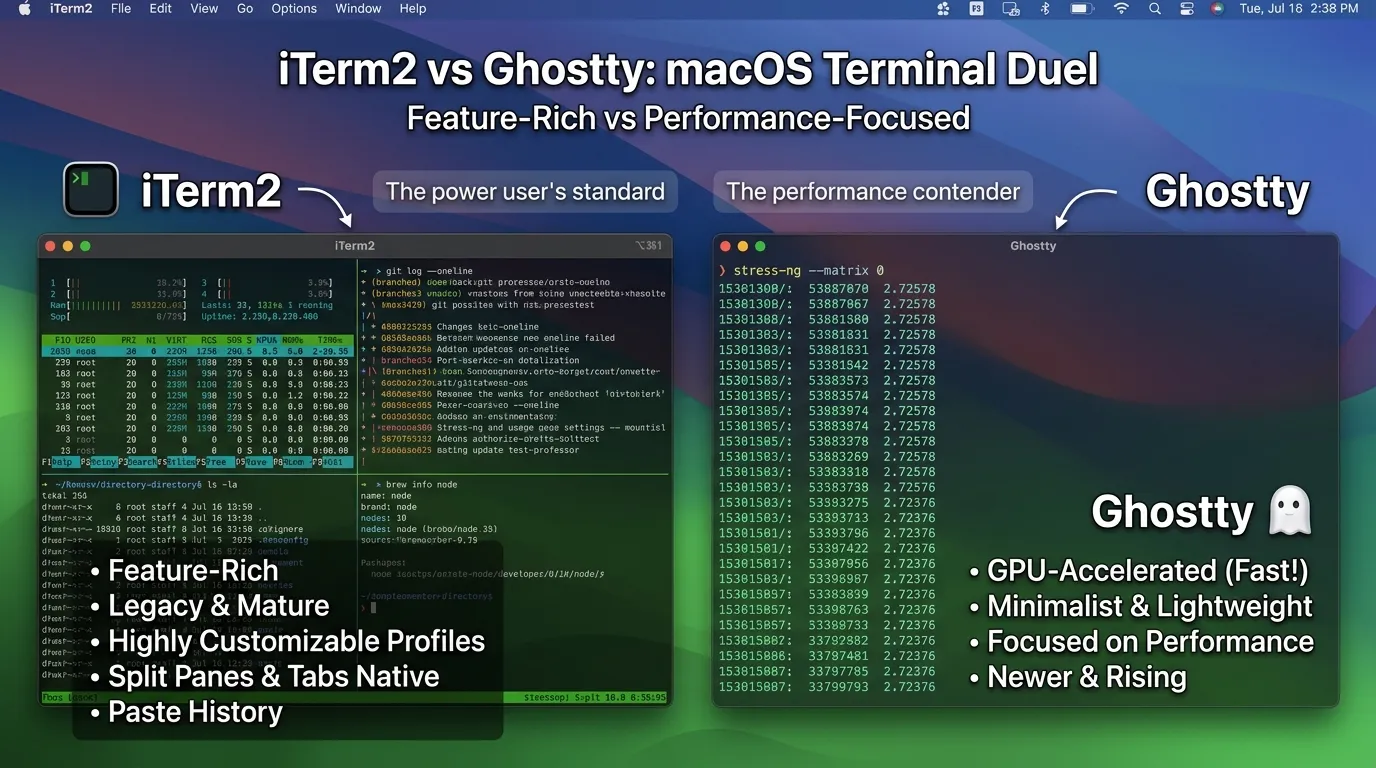
After using both styles of terminal, one thing becomes clear: small details can have a big impact. A fast launch, clean interface, responsive text rendering, and useful shortcuts can save time without you noticing it. I think iTerm2 feels like a well-stocked toolbox with a feature for almost every job. Ghostty, on the other hand, feels leaner and more focused. That difference can make one a joy to use and the other feel like overkill, depending on your habits.
This comparison will break down what really separates iTerm2 and Ghostty. You’ll see how they compare in speed, performance, features, customization, usability, and resource usage. More importantly, you’ll get a clearer idea of which terminal fits your workflow. In my opinion, the winner is less about having the longest feature list and more about giving you the tools you actually need.
So, if you’re wondering whether to stick with iTerm2 or give Ghostty a shot, keep reading. We’ll look past the flashy claims and compare the two where it counts. By the end, you should have a practical answer instead of another “it depends” verdict.
What is iTerm2?
iTerm2 is a popular terminal emulator built for macOS. It gives users a more powerful command-line experience than the default Terminal app. Developers, system administrators, and power users often choose it because it combines a familiar Mac interface with a large set of practical tools. It supports tabs, split panes, customizable profiles, search, hotkey windows, and many other features that make it easier to work with several terminal sessions at once.
Key Features of iTerm2
One of iTerm2’s biggest strengths is customization. You can create different profiles for different tasks, change fonts and colors, set keyboard shortcuts, and adjust how each terminal window behaves. Its split-pane feature is especially useful for development. You can run a server in one pane, edit files in another, and monitor logs in a third without opening several separate windows.
iTerm2 also offers features such as shell integration, instant replay, triggers, password manager integration, and tmux integration. Shell integration can provide useful information about commands and working directories, while triggers can perform actions when specific text appears in terminal output. These features make iTerm2 more than a simple window for running shell commands.
Another useful feature is the hotkey window. It lets you bring up a terminal with a keyboard shortcut instead of searching through open windows. This can be handy when you need to run a quick command and return to your main task. iTerm2 also supports extensive profile settings, giving users control over how different terminal sessions look and behave.
Why Mac Users Choose iTerm2
iTerm2 has been around for years, so many Mac users already know what to expect from it. Its mature feature set is a major reason for its popularity. Instead of relying on extra tools for every small task, users can often find the feature they need inside the application.
The interface also fits naturally into a macOS workflow. Users can organize sessions with tabs and panes, assign shortcuts, and create profiles for different projects. For someone who spends most of the day in a terminal, these small conveniences can add up quickly.
In my opinion, iTerm2 is particularly appealing to users who like having plenty of control. You can keep things simple, but there is also a long list of settings available when you want to fine-tune your workflow.
Main Strengths and Limitations
The biggest strength of iTerm2 is its feature depth. It offers a wide range of tools for developers and advanced users, from split panes and profiles to shell integration and tmux support. Its long development history also means that many common terminal workflows are already well supported.
The downside is that all those options can make iTerm2 feel busy. New users may need time to understand its settings and decide which features they really need. It is also primarily a macOS application, so it is not the natural choice for someone who wants the same terminal environment across macOS and Linux.
What Is Ghostty?
Ghostty is a modern terminal emulator created by Mitchell Hashimoto. It focuses on fast rendering, native platform interfaces, and a relatively simple user experience. Ghostty is available for macOS and Linux, making it interesting for developers who work across both platforms.
Unlike a terminal that tries to place every setting inside a large graphical preferences window, Ghostty puts much of its configuration in a text file. Users can define fonts, themes, window behavior, keybindings, and other settings through configuration options. This approach may feel familiar to developers who already manage tools such as Neovim, Git, or tmux through configuration files.
Key Features of Ghostty
Performance is one of Ghostty’s main selling points. It uses GPU-accelerated rendering to display terminal content efficiently. This can make a difference when the terminal has to process large amounts of text or rapidly changing output.
Ghostty also supports tabs, split panes, customizable keybindings, themes, fonts, and terminal graphics. Its configuration system gives users a direct way to control these settings without clicking through numerous menus.
Another important feature is its focus on native platform behavior. On macOS, Ghostty uses native macOS technologies for parts of its interface. On Linux, it integrates with the GTK environment. The goal is to make the terminal feel like a natural application on each supported platform rather than forcing one identical interface everywhere.
How Ghostty Differs From Traditional Terminal Emulators
Ghostty takes a different approach from many established terminal applications. Instead of focusing primarily on a huge collection of graphical settings, it places strong emphasis on speed, native behavior, and configuration through text.
That does not mean Ghostty lacks useful features. It supports the core tools developers expect, including tabs, splits, keyboard shortcuts, themes, and shell workflows. The difference is more about how the application is built and configured.
For users who enjoy managing configuration files, this can be a refreshing approach. Change a setting, save the file, and continue working. There is less need to hunt through several preference panels.
Main Strengths and Limitations
Ghostty’s main strengths are its performance, clean interface, GPU-accelerated rendering, and cross-platform support. It is also attractive to users who prefer keeping their settings in a simple configuration file.
However, Ghostty is a newer project than iTerm2, so users coming from iTerm2 may find that some familiar features or workflows work differently. Its configuration-first approach can also be less appealing to people who prefer clicking through graphical menus.
Overall, Ghostty feels focused and modern, while iTerm2 feels mature and feature-packed. That difference sets up the main question of this comparison: do you want the extensive toolbox of iTerm2, or the speed and simplicity of Ghostty?
Also view: Difference Between LM Studio and Ollama: Which Local AI Tool Is Better?
iTerm2 vs Ghostty: Key Differences at a Glance
At first glance, iTerm2 and Ghostty may seem quite similar. Both give developers a capable terminal environment with tabs, split panes, customization, and GPU-backed rendering. The bigger differences appear in their design choices, configuration methods, and platform support. iTerm2 has a long history on macOS, while Ghostty takes a newer approach with native interfaces and a strong focus on speed.
| Feature | iTerm2 | Ghostty |
|---|---|---|
| Platform | macOS | macOS and Linux |
| GPU rendering | Yes | Yes |
| Tabs | Yes | Yes |
| Split panes | Yes | Yes |
| Customization | Extensive | Extensive |
| Configuration | GUI + preferences | Text-based configuration |
| tmux support | Yes | Yes |
| Native interface | macOS-focused | Native platform UI |
The platform difference is one of the easiest ways to separate the two. If you work only on a Mac, both are strong choices. If you regularly switch between macOS and Linux, Ghostty has an obvious advantage because you can keep the same terminal application across both systems.
Configuration is another major difference. iTerm2 gives users a graphical preferences interface with a large collection of settings. Ghostty takes a more developer-friendly configuration approach by letting users manage many options through a text file. I think the better option depends on how you like to work. If you prefer clicking through menus, iTerm2 feels natural. If editing a configuration file sounds quicker, Ghostty may fit better.
Performance: iTerm2 vs Ghostty
Performance is one of the biggest reasons people compare Ghostty with iTerm2. A terminal emulator spends much of its time processing and displaying text, so rendering speed can matter during demanding tasks. Large logs, build output, compiler messages, and rapidly changing command-line applications can all put extra work on a terminal.
Ghostty puts a strong emphasis on GPU-accelerated rendering. This allows the graphics hardware to handle much of the work involved in displaying terminal content. The result is a terminal that can feel quick and responsive, especially during workloads that produce a lot of output.
iTerm2 also provides GPU-backed rendering and has had years of development focused on terminal performance. It remains responsive across everyday development tasks, including running shells, editors, package managers, and development servers. The difference between the two may be less noticeable during normal command-line work than it is during heavier workloads.
Startup Speed
A terminal that opens quickly can make a surprisingly big difference when you use it dozens of times each day. Ghostty is built with fast startup as one of its priorities, and its lightweight approach can make launching a new terminal feel snappy.
iTerm2 is also quick enough for normal daily use, but it provides a much larger collection of features and settings. That extra functionality can make the application feel more substantial compared with Ghostty.
Still, startup time should not be the only factor in your decision. Saving a fraction of a second matters less if you strongly prefer the features and workflow of the other terminal.
Rendering Performance
Rendering is where Ghostty gets much of its attention. When a terminal receives thousands of lines of output, it has to process and display that information without making the interface feel sluggish. GPU acceleration can help with this work.
Ghostty was built around this idea from the start. Its architecture separates terminal processing from the platform-specific interface and makes extensive use of the GPU for rendering. This design helps it handle demanding visual workloads efficiently.
iTerm2 also performs well for typical terminal workloads. It supports GPU rendering and has mature handling for large amounts of terminal output. For most users, both applications should feel fast during coding, Git operations, SSH sessions, and routine shell work.
Responsiveness
Responsiveness is more than raw benchmark numbers. It is about how quickly the terminal reacts when you type, resize a window, switch tabs, scroll through output, or run a command that produces constant updates.
Ghostty has a strong reputation for being responsive, particularly when handling busy terminal sessions. Its focused design helps keep the application feeling quick even when the terminal is doing a lot of work.
iTerm2 offers a responsive experience as well, along with many features that can make complex workflows easier to manage. If you regularly work with several panes, profiles, and sessions, those tools may matter more than a small performance difference.
Real-World Terminal Workloads
For everyday tasks, the gap between iTerm2 and Ghostty may not be dramatic. Running Git commands, editing code with Vim or Neovim, connecting to remote servers, managing packages, or starting development tools does not always push a terminal to its limits.
The difference becomes more interesting with heavier workloads. Developers who work with large build logs, continuous output, terminal-based dashboards, or applications that refresh the screen frequently may notice rendering behavior more clearly.
In my opinion, Ghostty has the edge if raw responsiveness and fast rendering are your top priorities. iTerm2 remains a strong choice if you want performance alongside a large collection of mature features. Neither choice is a bad one. The better fit depends on whether you value a focused experience or a feature-rich workspace.
CPU and Memory Usage
Terminal performance is not just about how quickly an app opens. CPU and memory usage also matter, especially when several terminal sessions stay open throughout the day. A terminal that consumes more resources can become noticeable on a laptop with many other applications running.
iTerm2 offers a large collection of built-in features, so it has more going on than a minimal terminal application. Profiles, shell integration, search, split panes, triggers, and other tools can all add functionality to the overall experience. For most users, this does not create a problem during normal work.
Ghostty takes a more focused approach. Its architecture puts considerable attention on efficient rendering and responsive performance. It can feel lighter during demanding terminal sessions, particularly when large amounts of text are constantly appearing on screen.
Handling Large Amounts of Terminal Output
Terminal output can become surprisingly heavy. A compiler may produce thousands of lines. A log monitor can keep printing new information every second. Commands such as cat, grep, or build tools can quickly fill a terminal window.
Both iTerm2 and Ghostty are capable of handling large amounts of output. The difference is most noticeable when the terminal is under sustained load. Ghostty’s GPU-based rendering approach is aimed at keeping the interface responsive during these situations.
Which One Feels Lighter?
Ghostty generally gives the impression of being the lighter application because its design stays focused on core terminal work. iTerm2, meanwhile, feels more like a complete terminal workspace with a much wider collection of built-in tools.
That does not mean iTerm2 is slow or inefficient. For everyday development, either application should handle normal workloads comfortably. If keeping the terminal simple is important to you, Ghostty has a more focused feel.
GPU-Accelerated Rendering
A terminal emulator has to draw everything you see on the screen. Every character, cursor movement, color change, scroll action, and screen update has to be rendered. GPU rendering allows the graphics processor to handle much of this visual work instead of leaving everything to the CPU.
What GPU Rendering Means
GPU rendering can make a terminal feel smoother when the screen changes rapidly. This matters during large builds, live logs, terminal dashboards, and applications that update the display frequently.
The benefit is less obvious during simple commands. Typingcd, checking Git status, or opening a small text file does not place much pressure on modern hardware. However, heavy terminal output can expose differences more clearly.
Ghostty’s Rendering Approach
Ghostty was built with GPU-accelerated rendering as a central part of its design. It uses modern graphics capabilities to draw terminal content quickly while keeping the interface responsive.
This approach is one reason Ghostty has attracted attention from developers who care about terminal speed. The goal is simple: terminal output should appear quickly without making the application feel sluggish.
iTerm2’s Rendering Performance
iTerm2 also supports GPU-backed rendering and has spent years improving its performance. It can handle demanding terminal sessions while providing a large collection of features.
So, the comparison is not really between a GPU terminal and a non-GPU terminal. Both can take advantage of the graphics hardware. The bigger difference comes from their architecture and priorities.
Why Rendering Matters for Developers
Developers often keep a terminal open for hours. A small delay repeated hundreds of times can become annoying. Smooth scrolling, quick screen updates, and responsive input make the terminal feel better during long coding sessions.
For lightweight command-line work, you may never notice a difference. If you work with large logs or constantly updating terminal applications, however, rendering performance becomes more important.
User Interface and Ease of Use
The interface is another area where iTerm2 and Ghostty take different approaches. iTerm2 gives users many controls and preferences. Ghostty keeps its interface cleaner and places more emphasis on configuration through text.
iTerm2’s Interface
iTerm2 will feel familiar to many Mac users. Tabs, panes, profiles, menus, and preferences are easy to find. Its graphical settings give you direct control over appearance and behavior.
The advantage is flexibility. The downside is that there are many choices. A new user can open the preferences window and quickly discover more settings than expected.
Ghostty’s Interface
Ghostty keeps the visible interface simple. Tabs and split panes work as expected, while the application avoids making the terminal feel crowded with controls.
This simplicity is part of its appeal. You can focus on the shell instead of the application surrounding it. For experienced developers, that can be a welcome change.
Which One Is Easier for Beginners?
iTerm2 may be easier for beginners who prefer graphical settings. You can open preferences, find an option, and change it without editing a configuration file.
Ghostty can be easier for beginners who are already comfortable with configuration files. Once you understand its configuration system, changing settings is straightforward.
Which Feels Better for Daily Use?
This comes down to personal workflow. iTerm2 is excellent if you like having many tools available from one application. Ghostty feels cleaner if you want the terminal to stay out of your way.
In my opinion, Ghostty has a simpler daily experience, while iTerm2 gives you more control when you need it.
Tabs, Split Panes, and Windows
Working with several terminal sessions is common for developers. You might run your application in one session, watch logs in another, and use a third for Git commands.
Both iTerm2 and Ghostty support tabs, split panes, and multiple windows. You can divide a workspace without constantly switching between separate applications.
iTerm2 goes further with features such as its hotkey window. A keyboard shortcut can bring a terminal window onto the screen whenever you need it. This is useful for quick commands and short tasks.
Ghostty also provides split-pane workflows and keyboard controls. Its approach stays simple, so users can arrange terminal sessions without a large amount of interface clutter.
For basic pane management, there is little separating the two. iTerm2 gains an advantage if you want more advanced window-management features.
Customization and Themes
Terminal customization can make a big difference during long work sessions. A comfortable font, readable colors, and a useful layout can make hours at the command line much easier.
iTerm2 has extensive customization options. You can create profiles with different fonts, colors, backgrounds, cursor settings, and other preferences. This makes it easy to create separate environments for work, servers, or personal projects.
Ghostty also supports fonts, colors, themes, keybindings, and window settings. Its configuration-based approach means you can keep your preferences in a file and reuse them across systems.
Profiles give iTerm2 a strong advantage for users who frequently switch between different terminal setups. Ghostty appeals more to people who want their settings stored as simple, portable configuration.
Configuration and Settings
The configuration experience is one of the clearest differences between these terminals.
iTerm2 relies heavily on graphical preferences. You can open its settings and change options through menus and controls. This is convenient when you are still learning how a terminal works.
Ghostty takes a text-based approach. You edit its configuration file directly. This fits naturally into developer workflows because configuration can be backed up, copied, or managed alongside other dotfiles.
Neither approach is automatically better. Graphical settings are easier to discover. Text configuration is easier to reproduce once you know what you want.
If you enjoy managing dotfiles, Ghostty may feel natural. If you want to point and click, iTerm2 is likely the better choice.
Shell Integration and Developer Features
A good terminal should work well with the shell and the tools running inside it. Both iTerm2 and Ghostty support common developer workflows, including command-line editors, Git, SSH, package managers, and development servers.
iTerm2 provides shell integration that can add useful information about commands, directories, and terminal sessions. Its search and navigation tools also make it easier to find information in long terminal sessions.
Ghostty focuses on providing a fast terminal environment without trying to turn the application into a complete development platform. It works well with common shells and command-line applications while keeping its interface focused.
For developers who want many built-in tools, iTerm2 has the stronger feature set. For developers who prefer a clean terminal paired with their existing command-line tools, Ghostty is compelling.
tmux Support
tmux is a terminal multiplexer. It lets you create several terminal sessions inside one persistent environment. You can disconnect from a remote server and reconnect later without losing the running sessions.
iTerm2 works well with tmux and includes features aimed at making tmux sessions easier to manage. Users who depend on tmux can combine its persistent sessions with iTerm2’s tabs and panes.
Ghostty also works with tmux. This means switching from iTerm2 does not require abandoning a tmux-based workflow.
The better choice depends on how much you want the terminal application itself to manage. If you rely heavily on iTerm2’s tmux-related features, staying with iTerm2 may be more convenient. If tmux is already the center of your workflow, Ghostty can fit in without much trouble.
Terminal Compatibility and Graphics
Terminal compatibility matters because developers often run tools created by different teams and projects. A terminal needs to correctly handle colors, keyboard input, text formatting, and other terminal behavior.
Both iTerm2 and Ghostty support common terminal standards and work with popular command-line applications. You can run shells, editors, Git tools, SSH sessions, programming environments, and terminal-based applications in either one.
Graphics support is another interesting area. Modern command-line applications can display images, diagrams, dashboards, and other visual content directly in a terminal. Ghostty supports modern terminal graphics features, while iTerm2 has its own mature graphics capabilities.
For everyday text-based development, these differences rarely matter. If your workflow includes terminal graphics or newer command-line interfaces, it is worth checking whether the specific application you use supports your preferred terminal.
macOS and Linux Support
Platform support gives Ghostty a clear advantage.
iTerm2 is built for macOS and has deep integration with Apple’s desktop environment. If you are a Mac-only user, this is hardly a limitation. In fact, it is one of iTerm2’s strengths.
Ghostty supports both macOS and Linux. That makes it attractive to developers who move between a Mac workstation and Linux machines.
The cross-platform option can also make configuration easier to maintain. If you keep your terminal settings in dotfiles, you can carry much of the same setup between supported systems.
For a Mac-only workflow, either terminal makes sense. For someone who wants one terminal application across macOS and Linux, Ghostty has the stronger case.
iTerm2 vs Ghostty: Feature Comparison
| Feature | iTerm2 | Ghostty |
|---|---|---|
| Performance | Fast and mature | Fast with a strong focus on responsiveness |
| Customization | Extensive | Extensive |
| Configuration | Graphical preferences | Text-based configuration |
| Tabs | Yes | Yes |
| Split panes | Yes | Yes |
| tmux | Strong support | Supported |
| GPU rendering | Yes | Yes |
| Graphics | Strong terminal graphics support | Modern terminal graphics support |
| Platform support | macOS | macOS and Linux |
| Resource usage | Feature-rich application | Focused and lightweight in feel |
| Ease of use | Familiar graphical controls | Simple interface with file-based settings |
The table shows why there is no universal winner. iTerm2 stands out for its mature feature set and Mac-focused workflow. Ghostty stands out for its performance focus, clean interface, and macOS/Linux support.
iTerm2: Pros and Cons
Pros
- Mature and well-established terminal for macOS
- Extensive customization options
- Strong macOS integration
- Profiles for different workflows
- Powerful tabs, panes, and windows
- Useful shell integration
- Strong tmux support
- Large collection of built-in features
Cons
- Limited to macOS
- The number of settings can feel overwhelming
- Some advanced features may be unnecessary for simple terminal use
- Users who prefer configuration files may prefer Ghostty’s approach
Ghostty: Pros and Cons
Pros
- Fast startup and responsive rendering
- GPU-accelerated design
- Native interfaces on supported platforms
- Simple text-based configuration
- Works on macOS and Linux
- Strong support for modern terminal workflows
- Clean and focused interface
Cons
- Newer than iTerm2
- Some iTerm2 workflows do not have a direct equivalent
- Configuration files may feel less familiar to users who prefer graphical settings
- Users who want a large collection of built-in tools may prefer iTerm2
iTerm2 vs Ghostty: Which One Should You Choose?
The right choice becomes easier once you focus on how you use your terminal.
Choose iTerm2 If…
You want extensive customization. iTerm2 gives you a large number of controls for appearance, profiles, windows, shortcuts, and terminal behavior.
You prefer graphical settings. You can change many options without opening a configuration file.
You rely on advanced macOS features. iTerm2 is built specifically around the Mac environment and offers a mature set of Mac-focused tools.
You want a feature-rich terminal. If you would rather have a tool available before you need it, iTerm2 is a strong choice.
Choose Ghostty If…
You care about speed and responsiveness. Ghostty’s design puts considerable attention on fast rendering and terminal performance.
You prefer configuration files. If dotfiles are already part of your workflow, Ghostty’s configuration system should feel familiar.
You want a clean interface. Ghostty keeps the terminal itself at the center of the experience.
You work across macOS and Linux. Ghostty makes more sense if you want the same terminal application on both platforms.
You prefer a focused terminal. If you do not need dozens of built-in settings, Ghostty may feel refreshing.
Is Ghostty a Good iTerm2 Alternative?
Yes. Ghostty is a strong iTerm2 alternative for many developers, particularly those who care about fast rendering, a clean interface, and cross-platform support.
However, switching does not automatically mean getting a better experience. iTerm2 has a long list of features that some users depend on every day. If you have built your workflow around its profiles, window controls, shell integration, or other tools, those features can be difficult to give up.
Ghostty makes the most sense when you want a simpler terminal experience without sacrificing core features. It is also a natural option for developers who use both macOS and Linux.
Final Verdict: iTerm2 or Ghostty?
So, which terminal wins?
For feature depth and advanced Mac workflows, iTerm2 is the stronger choice. It has years of development behind it and gives power users an impressive amount of control.
For speed, simplicity, and cross-platform use, Ghostty is the better pick. Its GPU-focused rendering, native interfaces, and text-based configuration create a clean experience that feels built for modern developer workflows.
If you already love iTerm2 and its features, there is little reason to switch just for the sake of switching. But if your current terminal feels heavy or you want a fast terminal that also works on Linux, Ghostty is worth trying.
In my opinion, Ghostty is the better choice for a fresh setup, while iTerm2 remains the safer choice for users who need its mature feature set. The winner is the one that removes friction from your daily command-line work.
Frequently Asked Questions
Is Ghostty faster than iTerm2?
Ghostty is built with a strong focus on fast startup and GPU-accelerated rendering, so it can feel very responsive. iTerm2 is also highly capable and has years of performance work behind it. The difference can be more noticeable during heavy terminal output than during simple commands.
Is Ghostty better than iTerm2?
There is no single winner for every user. Ghostty is a strong choice for speed, simplicity, and macOS/Linux support. iTerm2 is better suited to users who want extensive customization and a large collection of built-in Mac features.
Can Ghostty replace iTerm2?
For many users, yes. Ghostty supports the core features developers expect, including tabs, split panes, customization, keyboard shortcuts, and tmux workflows. However, users who depend on specific iTerm2 features should check whether their workflow has an equivalent in Ghostty before switching.
Does Ghostty support tmux?
Yes. Ghostty can be used with tmux, so developers who already depend on persistent terminal sessions can keep that workflow.
Is Ghostty available on Linux?
Yes. Ghostty supports Linux as well as macOS. This is one of its biggest differences from iTerm2, which is focused on macOS.
Which terminal is better for developers?
Both are strong choices. iTerm2 is especially useful for developers who want extensive customization and built-in features. Ghostty is a better fit for developers who prioritize speed, a clean interface, and cross-platform support.
Which terminal uses less memory?
Resource usage can vary based on settings, workloads, open sessions, and system configuration. Ghostty has a focused architecture and can feel lighter, while iTerm2 provides more built-in functionality. Rather than choosing based on memory claims alone, compare both with the workload you run every day.
Is iTerm2 still worth using?
Yes. iTerm2 remains a capable terminal for Mac users. Its mature feature set, customization options, profiles, panes, shell integration, and tmux support make it a practical choice. If it already fits your workflow, there is no strong reason to change simply because Ghostty is newer.