RetroArch 3DS Core: Which Core Should You Use for 3DS Games?

Getting RetroArch 3DS Core set up can feel harder than it should. You might install RetroArch, add a core, and expect your game to start right away. Instead, you may get a black screen, slow gameplay, crashes, missing files, or a game that won’t load at all. These problems are common enough that knowing what to check first can save you a lot of time.
The confusing part is that several things can go wrong during setup. The core may not support the system or game you’re trying to run, the required files may be in the wrong place, or your settings may be causing performance problems. It’s easy to change five things at once and then have no idea which change helped. I think it’s much easier to check each part one at a time.
In this guide, we’ll look at what RetroArch 3DS Core is, how cores work, and what you should check before trying to run a game. We’ll also cover common errors, performance problems, compatibility issues, and simple steps that can help you find the cause of a failed setup.
If you’re stuck with RetroArch on a 3DS, don’t start changing every setting you see. Start with the basics. Once you know what the core needs and what your system can handle, the rest of the setup becomes much easier to understand.
Which RetroArch 3DS Core Should You Use?
The most important part of this guide is choosing the right core.
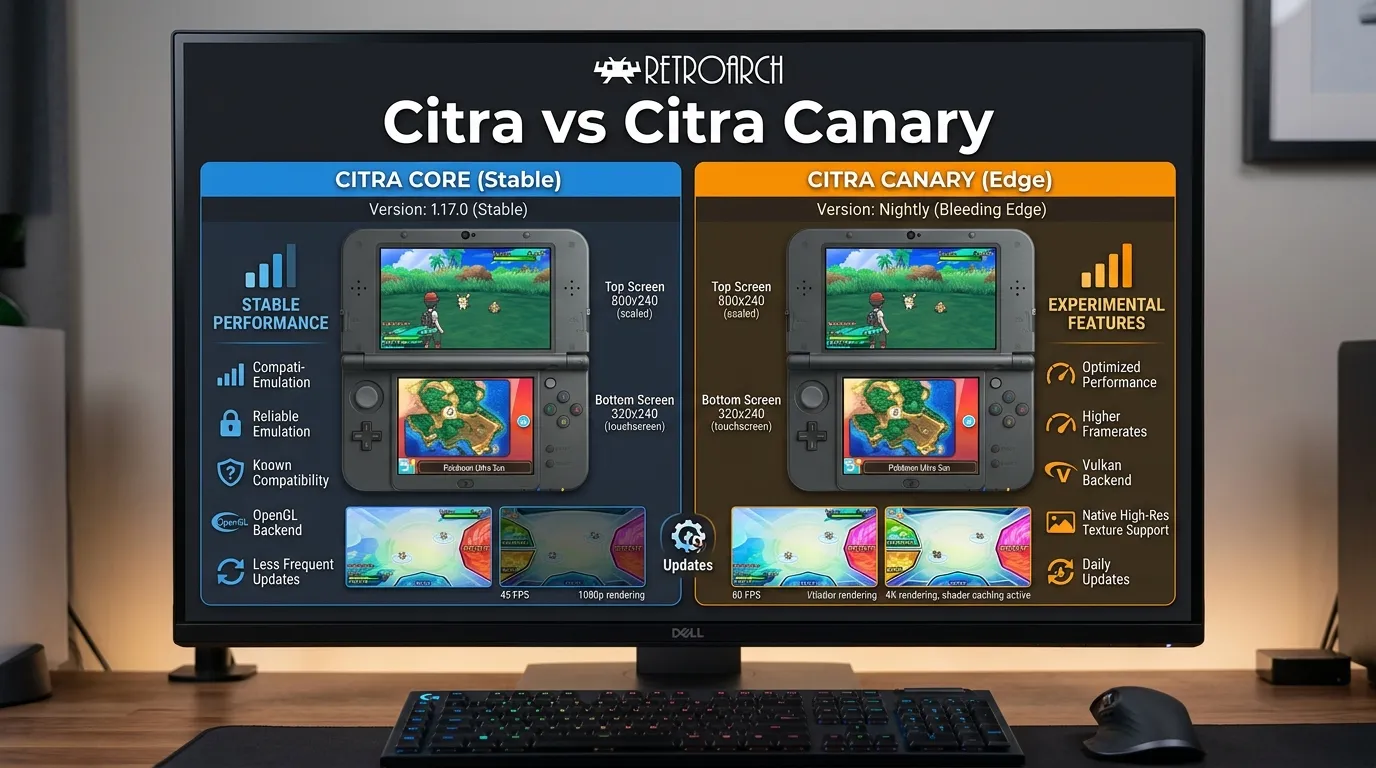
Current Libretro documentation identifies these Nintendo 3DS-related cores:
| Core | 3DS Support | Best For |
|---|---|---|
| Citra | Yes | General 3DS emulation |
| Citra Canary/Experimental | Yes | Testing newer experimental changes |
| Citra 2018 | Listed by Libretro | Older Citra codebase and compatibility testing |
The Libretro core list currently includes all three names.
Our simple recommendation
Start with Citra.
It is the easiest choice for someone who wants a straightforward RetroArch 3DS setup.
If a particular game has a problem, you can experiment with other available Citra-based options in your RetroArch installation.
Citra Canary/Experimental is described by Libretro as a performance-focused development version of Citra. It also exposes additional settings, including resolution scaling and several graphics options.
What Is RetroArch 3DS Core?
RetroArch does not run games by itself. It uses separate programs called cores to run games from different systems. A core is an emulator or software module that handles the work needed to run a specific type of game.
When people search for RetroArch 3DS Core, they are usually trying to find out which core can run Nintendo 3DS games through RetroArch. This can be confusing because RetroArch supports many systems, and each system can have different core options and requirements.
How Do RetroArch Cores Work?
A RetroArch core provides the software needed to emulate a particular console or system. You select the core in RetroArch and then use it to load a compatible game file.
For example, a core made for PlayStation games will not suddenly run a Nintendo 3DS game. The core needs to support the system you are trying to emulate. This is one of the first things to check when a game refuses to start.
Why Does the Core Matter?
The core you choose can affect compatibility, speed, controls, graphics, and overall performance. Even if RetroArch itself is installed correctly, the wrong core can prevent a game from working.
This is why installing RetroArch is only one part of the setup. You also need to check whether the available RetroArch 3DS Core option supports your game and device.
What Should You Check First?
Before changing advanced settings, check a few basic things:
- Make sure you are using a core that supports the system you want to emulate.
- Check that your game file is supported.
- Make sure required system files or firmware files are present when needed.
- Check that the core is installed correctly.
- Confirm that your device can handle the emulator.
- Test the game with the default settings before making major changes.
Starting with these checks makes troubleshooting easier. If the game still does not work, you can then look at graphics settings, controls, file locations, and performance options one at a time.
How to Install and Set Up RetroArch 3DS Core
Setting up RetroArch 3DS Core starts with getting the correct RetroArch version for your device. After that, you need to install a compatible core, place any required files in the right locations, and test a game before changing advanced settings.
The exact steps can differ depending on whether you are using RetroArch on a computer, Android device, or another supported platform. The menus can also change between RetroArch versions. So, if an option has a slightly different name on your device, check the current RetroArch documentation rather than assuming something is missing.
Step 1: Install RetroArch
First, install RetroArch from an official or trusted source for your platform. Once it is installed, open the program and let it finish creating its folders and basic configuration files.
Before doing anything else, check that RetroArch opens normally. If the main program is already crashing or refusing to start, installing a core will not fix that problem.
Step 2: Check Available Cores
Open the core section in RetroArch and check the available options. A core only works with the systems it was built to support, so do not choose one just because its name is similar to the console you want to emulate.
If a suitable core is not available for your version or platform, check the current RetroArch documentation and the core’s official information. Core availability can change between platforms and releases.
Step 3: Install the Core
If a compatible core is available through RetroArch, install it from the core downloader or the relevant installation option.
After installation, check that the core appears in your installed core list. If it does not appear, restart RetroArch and check again. Also make sure you have enough storage space and that RetroArch has permission to access the folders it needs.
Step 4: Prepare Your Game Files
Next, make sure your game files are in a format supported by the core you are using. Do not assume that every 3DS game file will work simply because the file belongs to a 3DS game.
Keep your game files in a folder that is easy to find. A simple folder structure can make it easier to scan your games and troubleshoot problems later.
You should also use game files that you legally own and have the right to access. Avoid downloading copyrighted games from unofficial sources.
Step 5: Load a Game
With the core installed and the game file ready, use RetroArch’s file or content loading option to select the game.
If RetroArch asks you to choose a core, select the compatible core you installed earlier. Give the game a moment to load. The first test should be done with the default settings rather than a long list of custom changes.
Step 6: Test Basic Performance
Once the game starts, check the basics first.
Look at:
- Game speed
- Audio quality
- Controller response
- Graphics
- Crashes or freezes
- Input delay
- Overall stability
If everything works, there may be no reason to change advanced settings. If performance is poor, change one setting at a time and test the game again.
Step 7: Check Required Files
Some emulators and cores may require additional system files, firmware, or other data. If a game gives you an error about a missing file, check the core’s documentation for the exact requirement.
Do not download random files from unknown websites just because a forum post says you need them. File names and requirements can vary by core and version, so use documentation that matches your setup.
Step 8: Save Your Configuration
Once the game works properly, save your configuration if you want to keep those settings.
It is a good idea to keep your setup simple at first. If you change several graphics, audio, and performance settings at the same time, troubleshooting becomes much harder because you won’t know which setting caused the change.
Common Setup Problems
A few problems can appear during RetroArch 3DS Core setup. The core may not appear, the game may fail to load, or performance may be too slow.
Before changing advanced options, check these basic points:
- Is the correct RetroArch version installed?
- Is the core compatible with your platform?
- Is the game file supported?
- Are required system files present?
- Does RetroArch have access to the needed folders?
- Does the device meet the core’s requirements?
- Are you testing with default settings?
These checks cover many basic setup problems. If the issue continues, the next step is to identify the exact error instead of changing settings at random.
Common RetroArch 3DS Core Problems and Fixes
Even after installing RetroArch 3DS Core, you may run into problems when trying to start a game. A game might stay on a black screen, close without warning, run slowly, or fail to load. The cause is not always the same, so it helps to check the problem step by step.
Before changing several settings, try to find the exact point where the problem starts. This makes troubleshooting much easier.
RetroArch 3DS Core Is Not Showing Up
One common problem is that the core does not appear in the installed cores list. This can happen if the installation did not finish correctly or if the core is not available for your platform.
First, restart RetroArch and check the core list again. If it is still missing, check whether your RetroArch version and platform support that core.
You should also check your internet connection if you are downloading the core through RetroArch. A failed download can leave you with an incomplete installation.
The Game Will Not Start
If the game does not start, check the game file and the selected core first. The file may not be supported, or you may have selected a core that cannot run that type of game.
Try loading another compatible game if you have one. If the second game works, the problem may be related to the original file rather than RetroArch itself.
Black Screen After Loading a Game
A black screen can have several causes. The core may not be compatible with the game, required files may be missing, or a graphics setting may be causing the problem.
Start with the default settings. If you recently changed video options, undo those changes and test the game again. Changing several graphics settings at once can make the problem harder to identify.
Game Runs Slowly
Slow performance is another issue you may notice with RetroArch 3DS Core. Emulation requires your device to reproduce the behavior of another system, and some games can place more demand on the hardware than others.
If the game is running slowly, check your device performance first. Close other demanding apps and make sure your device is not overheating.
Then check the core and RetroArch settings. Avoid changing advanced options unless you know what they do. A setting that improves performance in one game may cause problems in another.
Audio Is Crackling or Stuttering
Poor audio can happen when the emulator is struggling to keep up with the game. If the game itself is also running slowly, focus on performance first.
If the game runs at the correct speed but the audio still sounds wrong, check the audio settings in RetroArch. Test the default audio configuration before trying more advanced changes.
Controls Are Not Working
If the game loads but your controller does not respond correctly, open RetroArch’s input settings and check the controller mapping.
Make sure the buttons are assigned to the correct actions. If you are using a Bluetooth controller, also check whether the device is connected properly.
It can help to test another controller or another game. This tells you whether the problem is with the controller, the game, or the RetroArch configuration.
RetroArch Crashes
A crash can come from several sources, including an incompatible core, damaged configuration files, unsupported settings, or a problem with the game file.
Think about what changed before the crash started. If the game worked before you changed a setting, return that setting to its previous value.
If you recently installed a new core or update, check the current documentation for known compatibility issues. Avoid downloading modified files from random websites just to fix a crash.
When Should You Change Advanced Settings?
Advanced settings can help in some situations, but they should not be the first thing you change.
Start with the simple checks:
- Confirm the correct core is selected.
- Test a known compatible game file.
- Return unusual settings to their defaults.
- Check required files.
- Restart RetroArch.
- Test one change at a time.
This approach takes a little more patience, but it gives you a much clearer idea of what is causing the problem.
If RetroArch 3DS Core still does not work after these checks, look for the exact error message and compare it with the documentation for your specific RetroArch version and platform. The exact error is often more useful than simply knowing that the game does not start.
How to Improve RetroArch 3DS Core Performance
Once RetroArch 3DS Core is running, the next thing to check is performance. A game may load correctly but still have slow gameplay, audio problems, frame drops, or input delay. These issues can make a game difficult to play even when the basic setup is working.
The right settings depend on your device, the game, and the core version you are using. There is no single configuration that works perfectly for every game. Start with the default settings and make small changes only when you have a specific problem to fix.
Check Your Device First
Your hardware has a direct effect on emulation performance. A newer computer or mobile device may handle demanding games more easily than older hardware.
Before changing RetroArch settings, close programs that are using a lot of CPU or memory. On a laptop or mobile device, also check whether the system is getting hot. Some devices reduce performance when temperatures become too high.
Keep RetroArch and the Core Updated
Updates can include bug fixes, compatibility changes, and other improvements. If you are having a problem, check whether a newer version of RetroArch or the relevant core is available.
At the same time, do not update several parts of your setup without checking what changed. If a problem appears after an update, knowing what was changed can make troubleshooting easier.
Start With Default Graphics Settings
Graphics settings can have a large effect on performance. If you change several options at once, you may improve one problem while creating another.
Start the game with the default video settings. If performance is poor, change one graphics option and test the game again. Keep track of what you changed so you can return to the previous setup if needed.
Watch for Frame Drops
Frame drops happen when the system cannot produce frames quickly enough to keep gameplay running smoothly. You may notice pauses, uneven movement, or slow-looking gameplay.
If this happens, check whether the issue affects every game or only one title. If several games have the same problem, your device or general configuration may be the cause. If only one game has the issue, the game or core may need different settings.
Reduce Background Load
Other programs can take system resources away from RetroArch. Before testing performance, close unnecessary applications, browser tabs, downloads, and other demanding tasks.
This is especially useful on lower-powered devices. You may not need to change any RetroArch settings if the main problem is that too many other programs are running.
Check Audio and Input Settings
Performance problems are not always limited to graphics. Audio can crackle or stutter when the emulator struggles to keep up with the game.
Input delay can also make a game feel slow even when the frame rate looks acceptable. Check your controller connection and input settings before assuming the core itself is the problem.
Do Not Change Too Many Settings at Once
This is one of the easiest mistakes to make with RetroArch 3DS Core. You see a list of settings and start changing several of them because you want better performance.
The problem is that you may not know which change caused the improvement or the new error.
A better approach is simple:
- Test the game with default settings.
- Identify one specific problem.
- Change one setting.
- Run the same part of the game again.
- Compare the result.
- Keep the change only if it helps.
This takes a little longer, but it gives you a cleaner setup and makes future troubleshooting easier.
Keep Game-Specific Settings Separate
Some games may need different settings from others. If one title needs a change, avoid assuming that every game needs the same configuration.
Test the setting with the game that has the problem first. If your RetroArch version supports game-specific configuration, you can keep those changes separate from your general setup.
When Performance Still Does Not Improve
If the game remains slow after basic changes, check the core documentation and compatibility information for your platform. The issue may be a known limitation rather than a setting you can fix.
Also remember that running a game successfully does not always mean every game will perform the same way. Different games can place different demands on the emulator.
For RetroArch 3DS Core, the best approach is to keep the setup simple, test carefully, and make changes based on a specific problem instead of changing settings at random.
How to Improve RetroArch 3DS Core Performance
Once RetroArch 3DS Core is running, the next thing to check is performance. A game may load correctly but still have slow gameplay, audio problems, frame drops, or input delay. These issues can make a game difficult to play even when the basic setup is working.
The right settings depend on your device, the game, and the core version you are using. There is no single configuration that works perfectly for every game. Start with the default settings and make small changes only when you have a specific problem to fix.
Check Your Device First
Your hardware has a direct effect on emulation performance. A newer computer or mobile device may handle demanding games more easily than older hardware.
Before changing RetroArch settings, close programs that are using a lot of CPU or memory. On a laptop or mobile device, also check whether the system is getting hot. Some devices reduce performance when temperatures become too high.
Keep RetroArch and the Core Updated
Updates can include bug fixes, compatibility changes, and other improvements. If you are having a problem, check whether a newer version of RetroArch or the relevant core is available.
At the same time, do not update several parts of your setup without checking what changed. If a problem appears after an update, knowing what was changed can make troubleshooting easier.
Start With Default Graphics Settings
Graphics settings can have a large effect on performance. If you change several options at once, you may improve one problem while creating another.
Start the game with the default video settings. If performance is poor, change one graphics option and test the game again. Keep track of what you changed so you can return to the previous setup if needed.
Watch for Frame Drops
Frame drops happen when the system cannot produce frames quickly enough to keep gameplay running smoothly. You may notice pauses, uneven movement, or slow-looking gameplay.
If this happens, check whether the issue affects every game or only one title. If several games have the same problem, your device or general configuration may be the cause. If only one game has the issue, the game or core may need different settings.
Do Not Change Too Many Settings at Once
This is one of the easiest mistakes to make with RetroArch 3DS Core. You see a long list of settings and start changing several because you want better performance.
The problem is that you may not know which change caused the improvement or the new error.
A better approach is simple:
- Test the game with default settings.
- Identify one specific problem.
- Change one setting.
- Run the same part of the game again.
- Compare the result.
- Keep the change only if it helps.
This takes a little longer, but it gives you a cleaner setup and makes future troubleshooting easier.
RetroArch 3DS Core Compatibility and Game Support
Compatibility is another thing to consider before spending time changing settings. A game not working does not always mean your RetroArch installation is broken.
The core, game file, device, and software version can all affect the result. Some games may work better than others, while some may have problems that are specific to a particular emulator or platform.
Check the Core’s Supported Systems
Start by confirming that the core you selected supports the system and game type you are trying to run. Do not select a core based only on its name.
RetroArch supports many different systems, and each core has its own supported platforms and requirements. Check the current documentation for the core you are using.
Test More Than One Game
If possible, test another game that is known to work with the same setup.
If the second game loads normally, your original game file may be the problem. If both games fail in the same way, look at the core, RetroArch installation, device, or configuration instead.
This simple test can save a lot of unnecessary setting changes.
Check Your Game File
A damaged or unsupported game file can prevent a game from loading. Make sure the file is in a format supported by the core and that it was created or obtained legally.
Do not keep replacing system settings if the problem is limited to one file. Test another compatible file first.
Common RetroArch 3DS Core Mistakes to Avoid
Many setup problems come from small mistakes rather than one major issue. Avoiding a few common errors can make the process much easier.
Installing Random Files
You may find websites or forum posts telling you to download a particular file to fix a problem. Be careful with this approach.
Use official documentation or trusted project sources whenever possible. Random downloads can be outdated, incomplete, or unsafe.
Changing Every Setting at Once
Changing graphics, audio, input, and performance settings at the same time makes troubleshooting difficult.
Make one change, test it, and then decide what to do next. If the change makes things worse, you know what to undo.
Ignoring Version Differences
A guide written for an older version of RetroArch may show menus or options that no longer match your installation.
If an option is missing, check the documentation for your version instead of assuming your installation is broken.
Assuming Every Game Will Perform the Same
One game may run well while another has problems on the same device. This does not automatically mean something is wrong with your entire setup.
Game requirements and emulator compatibility can vary, so test individual games before making broad changes.
How to Keep a Stable RetroArch Setup
After getting a game working, it is worth keeping the configuration simple. A setup that works is often more useful than one filled with experimental changes.
Keep track of important settings if you make changes. If a future update causes a problem, you can compare the new setup with the previous one.
It is also a good idea to keep your RetroArch installation, cores, and game files organized. Clear folder names can make it easier to find files when you need to troubleshoot them later.
Avoid changing settings just because someone online recommends them. A setting that helps one person’s device may not help yours.
When Should You Reinstall RetroArch?
Reinstalling should usually be one of the later troubleshooting steps, not the first one.
If RetroArch itself is failing to start, configuration files are damaged, or repeated troubleshooting has not solved the issue, a clean installation may help.
Before reinstalling, back up anything you need, such as configurations or other personal files. Then install a current version from a trusted source and test it with the default configuration before adding lots of changes.
This gives you a clean starting point.
Frequently Asked Questions
What is the best RetroArch 3DS core?
For most users, start with the regular Citra core. Citra Canary/Experimental is worth testing when you want different features or need to troubleshoot a particular game. Libretro currently lists both as Nintendo 3DS cores.
Does RetroArch have a 3DS core?
Yes. The current Libretro core list includes Citra, Citra 2018, and Citra Canary for Nintendo 3DS.
Is Citra available in RetroArch?
Yes. Libretro provides a Citra core for RetroArch, along with a Citra Canary/Experimental option.
Which is better, Citra or Citra Canary?
For a simple starting point, use Citra. Canary/Experimental is useful for testing newer changes and additional settings. The best choice can vary by game and hardware.
Does the RetroArch Citra core support save states?
Yes. The regular Citra core’s current Libretro documentation lists save states as supported.
Can RetroArch play 3DS ROMs?
The Citra core supports several 3DS-related file formats, including .3ds, .3dsx, .cci, .cxi, and others. Use only game files you have the legal right to use.
Why isn’t Citra showing in RetroArch?
Check whether the Core Downloader is visible, whether your RetroArch version is current, and whether your platform provides that core. Some RetroArch distributions handle core installation differently.
Why is my 3DS game running slowly?
Lower the resolution scale, keep CPU JIT enabled, check your graphics driver, and test the default Citra settings. Performance varies by game and hardware.
Can I play 3DS games with a controller?
Yes. The Citra core supports standard RetroPad controls and allows controller remapping.
Does RetroArch support the 3DS touchscreen?
Yes. The Citra core supports touchscreen pointer and touch input through RetroArch’s input system.
Final Verdict: Which RetroArch 3DS Core Should You Use?
So, which RetroArch 3DS core should you use?
For most people, the best place to start is Citra.
It gives you a straightforward route into Nintendo 3DS emulation through RetroArch and supports important features such as controller mapping, touchscreen input, save states, and Citra-specific settings.
If you want to experiment with newer development changes, resolution scaling, screen layouts, or other settings, Citra Canary/Experimental is worth trying. Libretro describes it as the performance-optimized Citra version and documents a wider set of adjustable options.
Our recommendation
| Your goal | Recommended choice |
|---|---|
| Beginner 3DS setup | Citra |
| General 3DS gaming | Citra |
| Save states | Citra |
| Testing experimental changes | Citra Canary/Experimental |
| More resolution options | Citra Canary/Experimental |
| Troubleshooting a game | Try both where available |
| Simple RetroArch setup | Citra |
The most important thing is not to chase a single “perfect” core.
Start with Citra, keep the basic settings simple, test your games, and only change settings when you have a reason.
That approach will save you time and make it much easier to find the right setup for your hardware and favorite Nintendo 3DS games.